Graphical editor
The editor needs the gui extra (Extras):
pip install "acoustic-spaces[gui]", or uv sync --extra gui in a source checkout and
then uv run acoustic-spaces.
acoustic-spaces                                   # alone, it opens the editor on a new box room
acoustic-spaces edit examples/studio/scene.yaml   # or open a scene file
acoustic-spaces with no command opens the editor; acoustic-spaces -h lists the
commands. Without the gui extra, or with no display to show the editor on (over SSH,
say), it prints the short usage instead, with the reason.
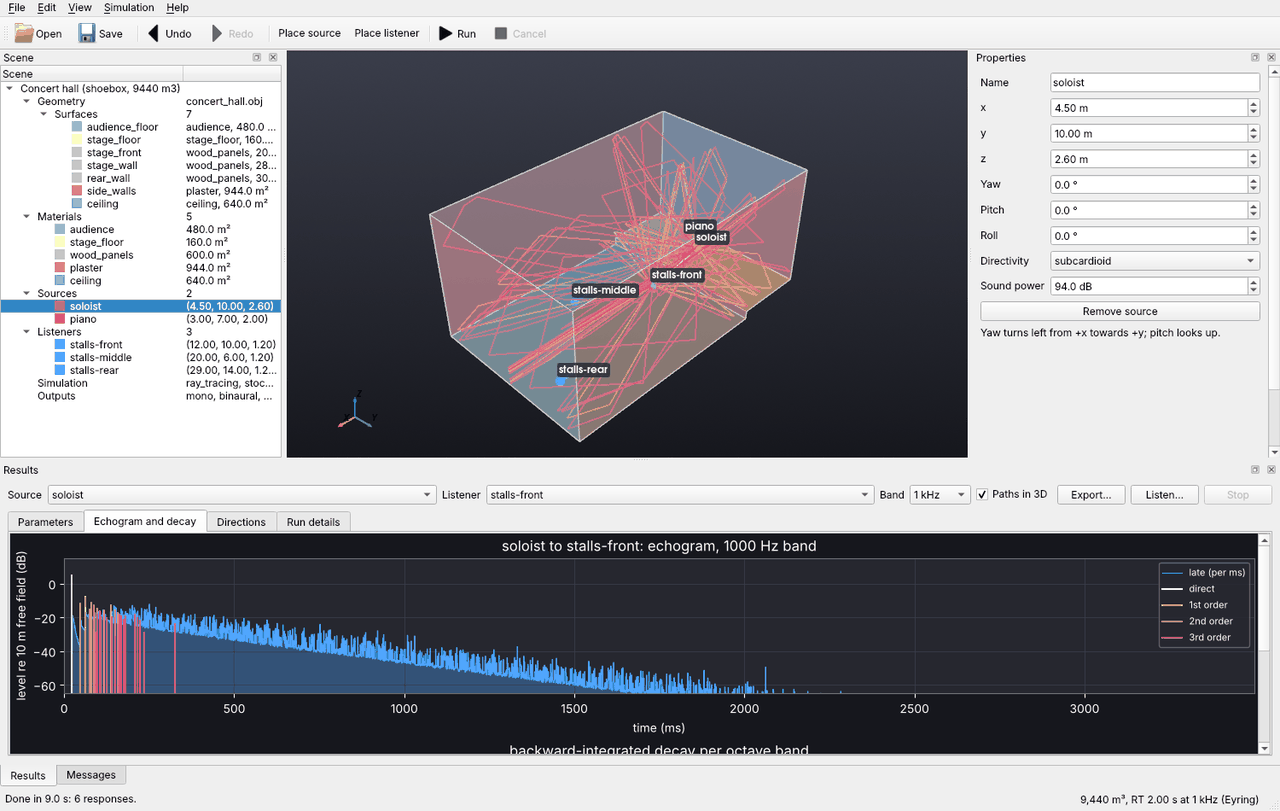
The editor works on the same scene files as the command line.
File > Open example opens the bundled rooms, in the groups of Example scenes. Saving one asks where to keep your copy and takes along the files it uses from the example’s folder (its model, terrain, map of buildings, material files, directivities with the patterns their array files name, the sources’ signals, its recording and HRTFs); an example whose model needs an extra that is not installed is greyed out, and its tip says how to install it. New box room, New room from a floor plan, New from model file (OBJ, STL, PLY, OFF, glTF, DXF, IFC, Collada or SketchUp) and New outdoor scene (a meadow 200 m across, to build on; see Outdoor scenes) start from scratch. For an IFC model, the geometry’s form picks one room of the building (IFC room) or every element.
The Plan tab, next to the 3D view, shows the room from above and draws rooms (see below).
The scene tree lists the geometry and its surfaces, the materials, sources, listeners, the wind outdoors, simulation settings and output formats. Selecting an entry, there or by clicking it in the 3D view, shows its form under Properties. Every change is checked against the scene schema; a refused change says why under Messages, and every change can be undone.
Sources and listeners sit in their groups (the form’s Group field; groups nest with
/, as PA/Delays). Each source, listener and group has a tick: unticked, it is left out of simulations, maps and checks, and is saved asenabled: false(the form’s Use in simulations does the same). The eye beside it hides it in the 3D view and the plan, or shows it again, without changing the scene. What a scene leaves out starts hidden (the stadium’s helicopter, band and singer’s microphone), and an eye follows its tick when that changes, by a click, undo or redo; shown again by its eye, an item left out is drawn faded. See Groups, and sources left out.Place source and Place listener, then click a surface: on a floor the new point stands at ear or mouth height, on a wall or ceiling it goes half a metre into the room. In the plan, the click places it above the floor there. Sources and listeners move by dragging, in the 3D view or the plan, and keep their height above the floor (up a raked floor too); with Shift in the 3D view they move up and down. Surfaces take materials from their form, or from a new material picked from the database (Edit > Add material from the database) or from a CATT-Acoustic or ODEON library (Edit > Add material from a library).
A material’s form sets its absorption and scattering per band (24 columns when it has third-octave data), whether it Lets through nothing, part of the sound (with its sound reduction index per band in the table) or everything (an opening), Audience seating for the seats (see Walls, doors and openings), and under Absorption uncertainty how far its absorption may be off, for the spread of the results (see Materials).
Edit > Edit movement…, or Edit movement… in a source’s or listener’s form, opens the Movement panel on the selected point source’s or listener’s walk: a table of keyframes, where it is and how it faces at each time, or, for a walk through points at one speed, a row per point and the speed. Drag a keyframe’s or a point’s handle in the plan or the 3D view, or type its values; every change can be undone. The slider and Play move every mover along its walk, nothing simulated. Moves keeps a walk but leaves its mover standing, and Doppler has it play as a passing vehicle does (
doppler: true; it then moves alone). A line or a surface source does not move. Render movement… simulates every mover on one clock and writes what each listener hears as a WAV file, aswalkthrough --alldoes (see Walkthroughs).The scene tree’s Simulation entry has the settings of Simulation. The scene’s own entry sets the air’s temperature, humidity and pressure, and its Recording is what the sources with a Channel play in a demo of the scene: one of the free recordings or a file of yours.
Simulation > Tune CPU and GPU… times the CPU and the GPU on the open scene (or on the concert hall example when the scene cannot run as it is), as
acoustic-spaces tunedoes (see Tuning the devices for a computer; needs thegpuextra). It runs in the background, once per computer, and then shows the table of times with a check box, Make auto the default on this computer: scenes whose Run on is default then run on the fastest device found, in the editor and on the command line.Simulation > Run demo… runs a demo of the open scene in the background, with what it prints under Messages and Cancel to stop it: This scene (a demo of any scene), and for an example’s scene its own demos and scripts. See Running a demo for the window.
The scene tree’s Outputs entry chooses what a run writes: mono, binaural, Ambisonics or loudspeakers. For binaural, HRTF file… takes a SOFA file from the disk, Spherical head goes back to the model, and Download HRTFs… offers the free sets with their licences and fetches the one chosen in the background (see HRTF sets to download).
Simulation > Run coverage map (F6) maps every source over the audience area (see Coverage maps). The Coverage map panel shows any parameter and band from above, for one source or all of them together, and Map in 3D lays it over the room, see-through so that the sources and listeners stay in sight; Save writes the picture or every map as JSON. The scene tree’s Coverage map entry sets the surfaces, height, spacing, rays and background noise, and with the box under Uncertainty ticked the map also gives its values’ uncertainty, which the panel’s Show draws.
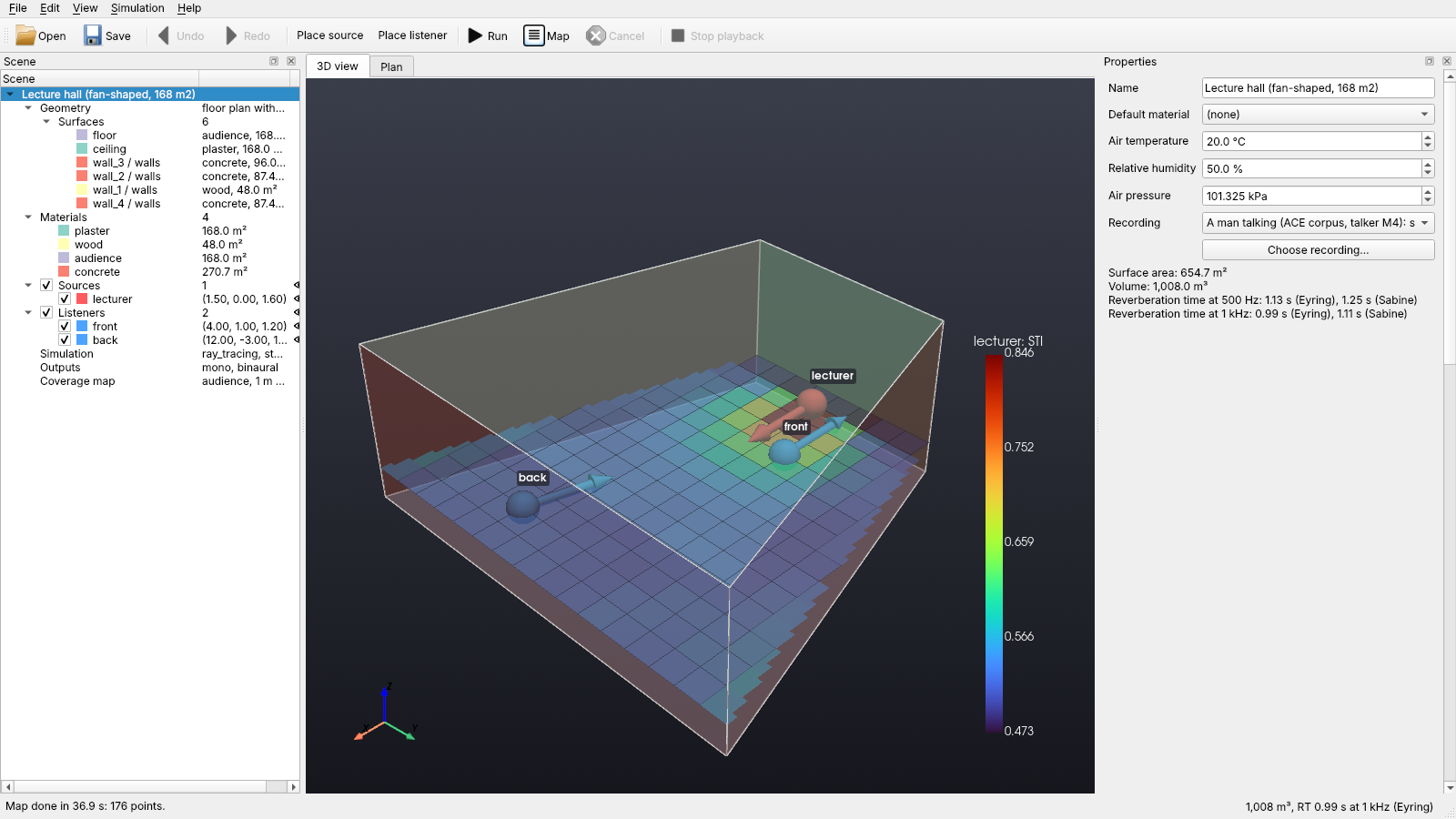
Simulation > Run (F5) works in the background. The Results panel shows the ISO 3382-1 parameters (outdoors also the level relative to free field, the insertion loss and the level over a long term, see Results outdoors and Levels over a long term), the echogram and decay curves and the arrival directions of any source and listener, and draws their reflection paths in the room. With the late rays in batches, each parameter’s tip gives its standard error, how much it would change between runs with other seeds (Simulation), and the value is amber where that is over half a JND: more rays per band would make it smaller. Export writes the same files as
simulate, in the background (Cancel stops it); Listen plays a dry WAV file through the response on the sound card, binaurally (through the HRTF of the scene’s binaural output if it has one, else a spherical head; needs themeasureextra), or head-tracked with Head tracking ticked (see Head tracking). While it plays, the status bar says so, with Stop playback (also in the toolbar and the Simulation menu, or Esc). Picking another source or listener (in the scene or the panel), or ticking Head tracking, plays on from the same point with that response, at the same level so the difference stays audible. What plays does not follow changes to the scene (moving a source, say): the status bar marks it as from before them, and Listen again plays them.Change a material’s absorption after a run and the results follow at once: the run counted each ray’s reflections off each material, and is re-weighted for the new values instead of traced again (as
calibratedoes). Where the early reflections add in pressure (up to 125 Hz indoors by default, every band outdoors), their phases turn with the absorption too, as a new run has them; only the faces of an edge that sound bends round keep what they did to it as traced. The panel says so; Run traces afresh. Other changes, and runs with the statistical method, third-octave bands or the wave solver, leave the results marked out of date until the next run. So does another absorption of an outdoor ground without an impedance where the solver for whole rows carries a row’s sound, which depends on it.A source’s form sets its Shape (a point, a line or a surface, with its length, height and spacing), its directivity (a pattern, a SOFA or CSV file of measured data, or an array file, whose elements Add up the array’s elements one by one sums near its listeners), its sound power per band, its Spectrum (flat, or male or female speech) and the Gain, Equalizer and Delay of its feed. It shows the directivity index per band, opens the polar patterns, and the selected source shows its balloon in the 3D view. Plays says what the source plays in a demo of the scene: Choose WAV… picks a dry recording, Silent takes it away, and without one it plays its Channel (left, right or mono) of the scene’s Recording. The channel of a file of its own is picked the same way; (none) mixes it down.
A listener’s form sets its Microphone, what its mono output picks up through, aimed where it faces: omni, a first-order pattern, or an XY pair (with its Angle and Capsules), a Blumlein pair or an MS pair (with its Mid capsule and its Side’s gain), which write two channels (microphones). A pattern per band, set in the scene file, shows as per band: … in the list (and in Capsules or Mid for a pair’s) and stays until another is picked. The selected listener shows its microphone’s balloon in the 3D view (at 1 kHz), one for each capsule of a pair.
The status bar keeps the volume and the Eyring reverberation time at 1 kHz up to date as you edit, with the number of problems in red.
Messages shows warnings in amber and errors in red; so does the scene’s own form for its problems and warnings. Its Item list keeps only the messages about one source, listener or material, and with them every error and the line that ends a run (done, cancelled, a demo’s).
View > Scene YAML shows the scene as YAML text that follows every edit. Edited text is applied with Apply (Ctrl+Return), checked as every other change is, in one step that Undo takes back; text the checks refuse stays as typed, with the reason. The text is made from the scene, not read from its file, so the file’s comments do not show (Save does not keep them either). A material’s absorption, scattering and source show only where its preset, file or other settings do not give them, so another preset or file written there brings its own.
Runs, coverage maps, tunings and exports go on in the background, with Cancel in the status bar.
View > Follow the run (on by default) rings, in the 3D view and the plan, the sources and listeners that the latest step of a run (a demo’s too) names, hidden ones included. While a walking source is simulated place by place (a pass-by demo’s vehicle, Render movement…), every walker of the run is drawn where it is at that place’s time, on the walks the run simulates: a demo’s own scene when it has one, the vehicle at
--speed, say. When only listeners walk, each source is traced to all their places at once, so the views do not move them. While a demo encodes its video, the views show what the video shows at that moment: the listener of each pass of the tour in turn, the sources that play, and the walkers where the video has them. A head a demo turns (the gallery walk’s look round) faces as it does then, as it is rendered and in the video; arrows and directivity balloons turn with it.View > Show leaks traces rays from the sources and shows where they escape from a model that is not closed: its open edges, the escaping rays and a marker on each gap, with the report in the messages (see Finding leaks). It traces again when the geometry, the materials or the sources change.
View > Show wind draws the wind of an outdoor scene in the 3D view and the plan, with the weather zones and their winds, and View > Show wind profile stands a mast with the wind at every height in each weather (see Wind and temperature).
View > Language shows the editor and the command line in English, Spanish, Catalan, Italian, German or Dutch, or in the computer’s language, from their next start (see Language). Numbers in the editor follow the computer’s regional settings: 0,85 where the decimal mark is a comma, with lists of numbers (an equalizer’s gains) apart by semicolons there.
File > Pack for another computer writes the scene and every file it names to one zip file, as
acoustic-spaces packdoes, to run on a server or a cloud job (see Running on another computer).File > Export to Blender writes the room with the reflection paths on show, and File > Export particle animation to Blender the sound particles leaving the selected source, asking first how much of the sound to animate, how slowly and how many particles (see below).
Drawing rooms
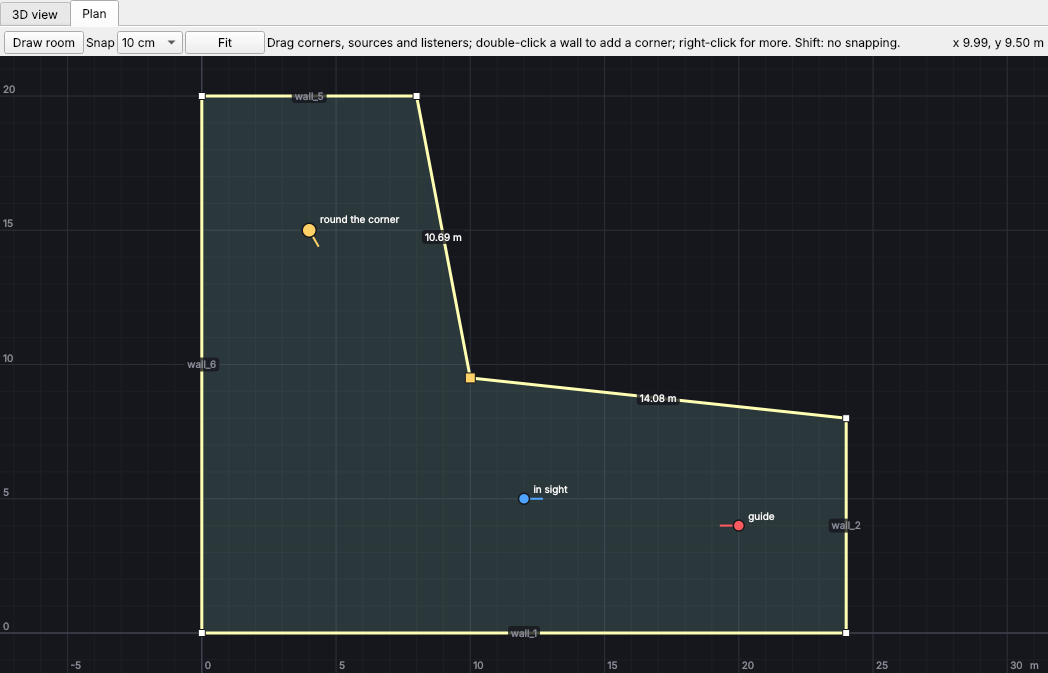
The Plan tab shows the room from above on a grid in metres. In a floor plan or box room every corner is a handle:
Drag a corner to move it; the two walls it joins show their lengths as it moves. A box becomes a floor plan with the same walls, so its materials stay where they were.
Double-click a wall to add a corner there, or right-click a corner to remove it. Clicking a wall selects that surface, to give it a material.
Draw room (or Edit > Draw floor plan) draws a new floor plan: click its corners in turn and close it on the first one, with a double-click or with Enter. Backspace takes the last corner back and Esc stops. The new room keeps the old one’s height (change it under Geometry). Sources and listeners that would end up outside move inside, keeping their arrangement. Over a model file, the editor asks before replacing it.
Corners and points snap to the grid chosen under Snap (10 cm unless changed); hold Shift to place them freely. A move that would make walls cross is refused, with the reason under Messages.
The wheel zooms, dragging empty space pans and Fit shows the whole room again, with every source and listener and the places their walks go through.
Rooms from model files show their outline, and their sources and listeners move the same way. Every change can be undone.
Outdoor scenes
File > New outdoor scene starts an outdoor scene: a flat meadow 200 m across under an open sky, with a source and a listener 50 m apart. The Geometry entry of an outdoor scene has an Outdoors group instead of the room’s: the ground’s height, the margin, the sky and the Extent (tick it to set where the ground ends; unticked, the ground reaches the margin past what stands on it), then the buildings, barriers, vegetation and ground zones in tables, with their heights, which can be changed, and buttons to add and remove them:
Add building, Add zone and Add vegetation with belt of trees chosen draw an outline in the plan, like a floor plan: click its corners in turn and close it on the first one, with a double-click or Enter. Add barrier and Add vegetation with hedge chosen draw a path: click its points and finish with a double-click or Enter. A lone tree stands where the next click lands. Backspace takes a point back and Esc stops. A new building is 10 m high, a barrier 3 m, a belt of trees 12 m, a hedge 2 m high and 1.5 m wide, a tree 10 m high with a crown 8 m across; change the heights in the tables and the rest in the scene file. A zone takes the ground’s material until its surface is given one in the scene tree.
Terrain from a file makes the ground follow the heights in an Esri ASCII grid or a table of x y z points (see Terrain); the form then describes it (its points, heights and grid), and Remove terrain flattens the ground again.
Buildings from a map adds the buildings of a GeoJSON file of footprints (see Buildings from a map), after asking which of its properties holds their heights (or one height for all of them), the height of those without it, and which property names them. They stand in the buildings table after the scene’s own, where Remove building leaves one out of the file, and Remove the map’s buildings drops the file.
The scene’s own entry then has a Wind and temperature group: the weather, the wind, the temperature over the ground and their Eddies (see Turbulence), with Show the profile to plot them. Weather of picks whose weather the fields show: the scene’s, a weather zone’s (Add weather zone draws one in the plan) or a weather class’s (Add weather class), each class with its share of the time in each period of the day. A material’s page has a Ground impedance group, to make the material a ground: ticking it keeps the material’s scattering unless that is 0.1 in every band, as a new material’s is, since a ground scatters nothing unless its material says so, and unticking it gives a ground that scatters nothing 0.1 in every band (see Ground impedance). The Simulation entry adds Barriers and buildings (the solver for whole rows or the paths over the edges, see Sound over rows of barriers and buildings), the Parabolic equation (narrow-angle or wide-angle), Frequencies behind barriers (each choice with its largest error at 8 kHz), Frequencies over open ground (each choice with its largest error at 1 and 2 kHz) and, with buildings, barriers or vegetation, an Insertion loss list: ticking one runs the scene again without it (see Results outdoors). Draw room replaces an outdoor scene with a floor plan, after asking.
Exporting to Blender
acoustic-spaces export writes a scene as glTF 2.0 (.glb) for Blender or another 3D
tool; the editor does the same from its File menu.
acoustic-spaces export examples/concert_hall/scene.yaml hall.glb              # the room
acoustic-spaces export examples/concert_hall/scene.yaml hall.glb --paths      # + reflection paths
acoustic-spaces export examples/concert_hall/scene.yaml hall.glb --particles  # + particle animation
In Blender, use File > Import > glTF 2.0 (.glb/.gltf) and pick the file. The axes are the scene’s (+z up, metres).
Each surface is an object named as in the editor, with a see-through material per scene material; the material’s custom properties hold its absorption and scattering per octave band. Sources (red) and listeners (blue) are spheres turned the way they face, with an arrow along the aim. Outdoors, each tree, hedge or belt of trees is a see-through green object under
vegetation, and the sky is left out.--pathsadds the early reflection paths from--sourceto--listenerup to--max-order, as long after the direct sound as a simulation keeps them (transition_ms, or the mixing time with the statistical late method, see Simulation), one object of edges per order. Edges do not render: to render them, use Object > Convert > Curve and give the curve a bevel depth.--particlesadds the particles ofanimateas small spheres that move with them and shrink with their level, gone 60 dB down: 1000 of them (--count) over the first 100 ms (--duration), 40 times slower than the sound (--slow-motion). If the timeline ends sooner, set its end frame, then press play. The editor asks for the same three: Particles, Sound to animate and Slow motion; outdoors it starts with sound enough to reach the farthest listener. Blender draws a dashed line from each particle to the object that holds them; Overlays > Relationship Lines hides them.